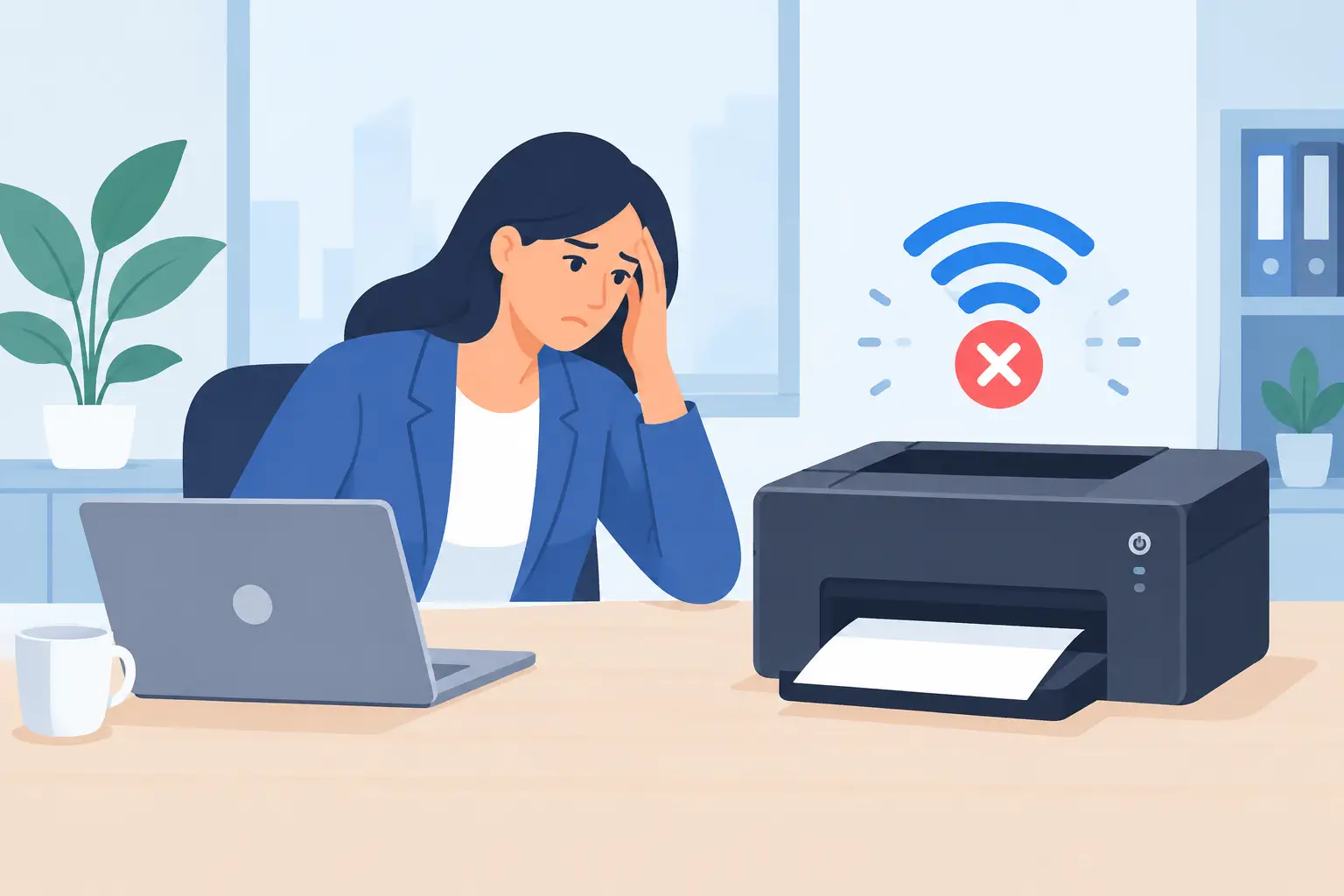
A printer that disappears at 8:55 a.m. is not a small annoyance when invoices need to go out, contracts need signatures, or a shipping label is holding up a delivery. If you are asking, why do printers keep disconnecting, the answer is usually not that the printer has suddenly failed. More often, it is losing its connection to the network, the computer is using the wrong path to reach it, or an update has changed something in the background.
The frustrating part is that the printer may come back on its own. Someone restarts it, prints one page, and gets back to work. Then the problem returns the next day. That pattern is a sign to stop treating it as a one-off and identify the underlying cause.
Why printers keep disconnecting on business networks
Office printers sit at the intersection of several systems: Wi-Fi or Ethernet, router settings, print servers, employee laptops, drivers, power settings, and sometimes cloud print software. A problem in any one of those places can make a perfectly functional printer appear offline.
The most common causes fall into a few predictable categories. The fix depends on how the printer is connected and how your workplace manages devices.
The printer's IP address keeps changing
Every network-connected printer needs an IP address, which is how computers find it. On many small office networks, the router assigns addresses automatically. This is convenient until the printer restarts, the router renews its assignments, or another device takes the address the printer used before.
Your staff may still see the printer by name, but their computers are trying to send print jobs to an old address. The result is an offline status, stalled queue, or a job that vanishes without printing.
A reserved or static IP address usually solves this. It gives the printer a consistent address and prevents the connection from changing after a reboot or power interruption. This is especially worthwhile for shared printers used by accounting, reception, shipping, or a whole department.
Wi-Fi is too weak or too busy
Wireless printing is convenient, but it is not always the right choice for a high-use office printer. A printer tucked into a back room, warehouse, reception area, or metal shelving zone may get a weaker signal than the laptops near it. Even a printer that seems close to a wireless access point can struggle if concrete walls, machinery, or crowded Wi-Fi channels interfere.
Wi-Fi can also drop briefly without anyone noticing. A phone reconnects quickly. A browser refreshes. But a printer may stay disconnected until it checks in again or gets restarted.
For a printer that handles daily business-critical work, a wired Ethernet connection is usually more dependable. It removes the wireless signal from the equation and makes troubleshooting much simpler. If wiring is not practical, assess the printer's signal strength and the placement of your wireless equipment rather than repeatedly reinstalling the printer on each employee's computer.
A driver or operating system update changed the connection
Printer drivers translate a document into instructions the printer can understand. When the driver is outdated, generic, corrupted, or replaced by an automatic operating system update, printing can become inconsistent. The printer might work from one computer but not another, or it may print basic documents while failing on labels, envelopes, or larger files.
This issue is common when staff install printers themselves. One employee uses a manufacturer driver, another adds the device through a generic network discovery tool, and a third has an old driver from a previous printer. They all appear to be using the same machine, but they are not using the same configuration.
A managed setup uses the correct driver version and a standardized printer port for every user. It takes a little longer to set up properly, but it reduces repeat tickets and avoids the familiar question: “Why can everyone else print except me?”
Sleep settings and power interruptions are getting in the way
Many printers enter deep sleep to save energy. That is reasonable at home, but some office models are slow to wake or lose their network connection while sleeping. A power-saving setting can look like a network problem when the printer does not respond to a job sent first thing in the morning.
Check whether the printer is going offline after a set period of inactivity. Also look for loose power cables, overloaded power bars, or cleaning staff switching off the outlet overnight. If the issue happens at the same time each day, the pattern matters.
The right approach is not always to disable every energy-saving feature. Instead, adjust the sleep mode so the printer remains reachable during business hours, then confirm it reconnects reliably after waking.
Start with the pattern, not the printer
Before resetting anything, ask a few practical questions. Does the printer disconnect for everyone or only one person? Does it happen after a power outage, overnight, or when the office is busy? Is the problem limited to Wi-Fi users? Can staff scan to email even when they cannot print?
Those answers narrow the search quickly. If everyone loses access, the issue is likely with the printer, network, or shared print management. If one employee loses access while others continue printing, focus on that computer's driver, printer port, credentials, or local settings.
It also helps to separate a printing problem from a document problem. A printer that cannot produce a simple test page has a connectivity issue. A printer that handles a test page but fails only on one PDF or spreadsheet may be dealing with a file format, application, font, or driver issue instead.
A practical way to fix repeat disconnections
Work through the connection in order. Start at the printer itself. Confirm it is powered on, has no error message, and shows a valid network connection on its screen. Print a network configuration page if the model supports it. This gives you the current IP address and connection status.
Next, compare that address with the address configured on the computers or print server. If they do not match, the printer has likely received a new address. Reserve its current address in the router or network management system, then update the printer connection once using that reserved address.
After that, look at the physical and wireless path. For Ethernet printers, try a known working cable and switch port. For Wi-Fi printers, check signal quality where the printer is located, not just elsewhere in the office. A stronger access point, a better channel plan, or an Ethernet connection may be a better fix than another reinstall.
Then standardize the driver. Remove duplicate versions of the same printer from affected computers, install the approved driver, and ensure users are printing to the intended device. This matters when an office has several similar printers or an old device name is still appearing in print menus.
Finally, review the print queue and the device's power settings. A stuck job can hold up every job behind it, making a live printer look broken. Clear failed jobs only after confirming why they failed, or the same bad document may simply restart the cycle.
When restarting is not a real fix
Restarting the printer, router, or computer can restore service because it forces devices to reconnect. It is useful as a short-term response when staff need to keep moving. It is not a lasting solution if the printer disconnects every few days.
Repeated restarts create hidden costs. An office manager loses time walking to the printer. Employees send documents to the wrong device or print duplicates. A shipping team pauses while labels wait in the queue. Someone calls support, explains the same issue again, and returns to work without knowing whether it will happen tomorrow.
That is why recurring printer issues deserve documentation. Record the time of each outage, who was affected, whether the printer was on Wi-Fi or Ethernet, and what restored it. A short record often reveals a clear trigger: overnight power cycling, IP address renewal, a specific laptop update, or a weak signal during busy periods.
Build printing into your regular IT maintenance
Printers are easy to overlook because they are familiar equipment. Yet they often support the work that keeps a business moving: signed documents, purchase orders, job packages, visitor forms, shipping paperwork, and customer records.
A reliable setup gives shared printers fixed network addresses, uses approved drivers, keeps firmware current where appropriate, and documents who supports each device. It also means replacing aging printers before they become a weekly interruption. There is a trade-off here: a basic consumer printer may cost less upfront, but it can be a poor fit for a busy workplace with multiple users and a mixed network.
If your team is repeatedly troubleshooting the same printer, the goal should not be to get one document out the door. The goal is to remove one more recurring interruption from the workday. A printer should be as uneventful as the office lights: available when people need it, and not something staff have to think about.