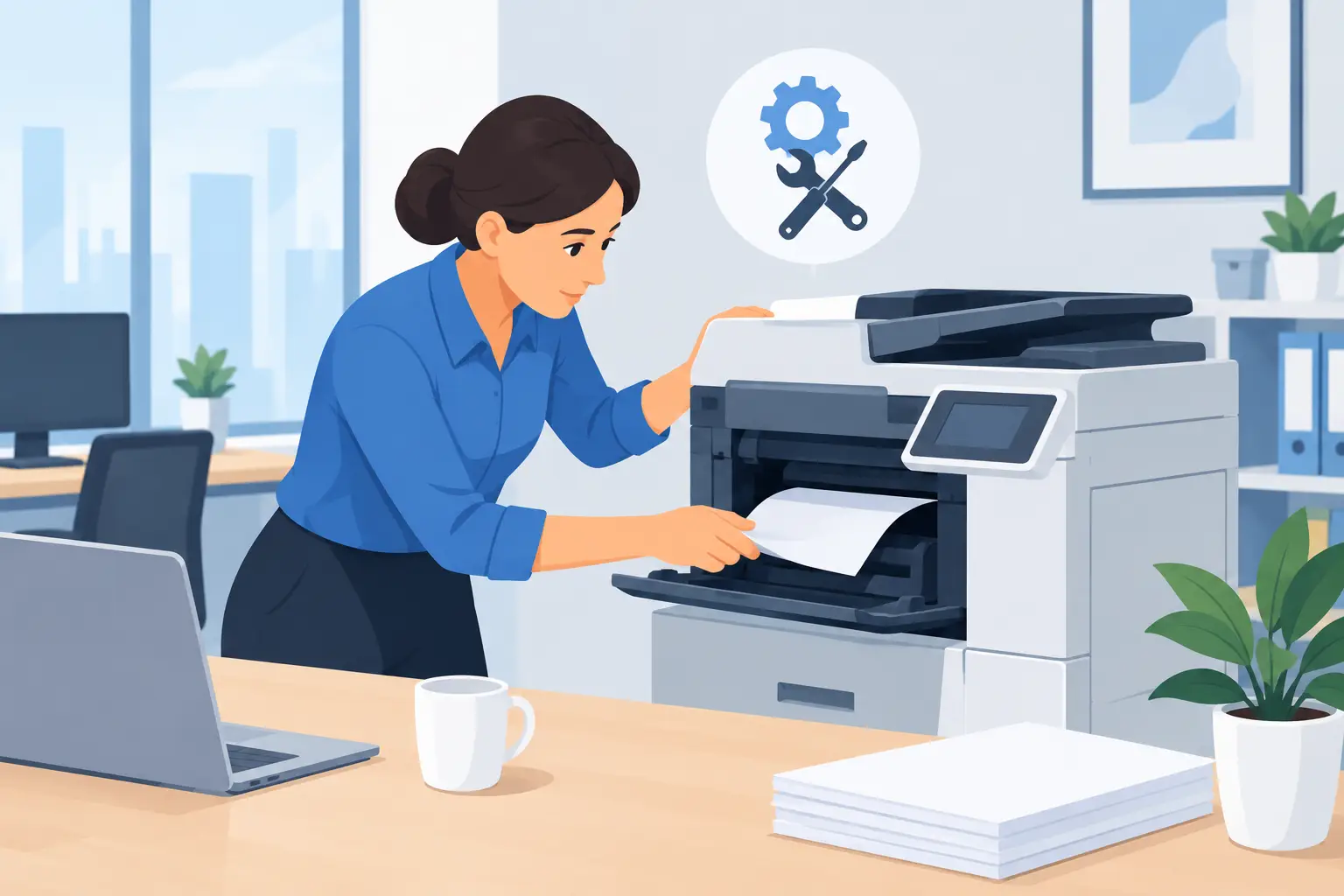
A printer failure rarely arrives at a convenient time. It shows up five minutes before a client meeting, when payroll needs to go out, or when the shipping desk has a stack of labels waiting. Knowing how to handle printer problems is less about becoming an IT technician and more about using a calm, repeatable process that gets work moving again without turning one stuck print job into an hour of lost staff time.
For a small or mid-sized business, the real cost is not just ink, paper, or a repair call. It is the office manager fielding interruptions, staff retrying jobs six times, and documents getting sent to the wrong device. Start with the basics, identify where the failure sits, and know when the issue needs a technician rather than another round of unplugging and plugging back in.
How to Handle Printer Problems Without Guessing
The fastest way to solve a printer issue is to narrow it down. Is the problem with the printer itself, the computer sending the job, the network connection, or the document being printed? Those are different problems, even when the message on screen simply says “printer offline.”
Before changing settings, ask two practical questions: Can anyone else print to this device? And can the affected person print to another printer? The answers usually point you in the right direction.
If nobody can print, start at the printer. Check for power, error lights, paper, toner, a jam, an open tray, or a message on the display. If only one employee cannot print, the issue is more likely their computer, user access, print queue, or application. If one document will not print but others do, look at the document itself.
That short check prevents a common workplace mistake: having five people make different changes at once. One person should own the troubleshooting process and tell the rest of the team what is happening.
Start With the Physical Printer
Printers are still physical machines, and physical checks solve more issues than many offices expect. A network printer can be fully connected to Wi-Fi and still refuse to print because a paper guide is too tight, a tray is not fully seated, or a cartridge is not latched correctly.
Clear Paper Jams Carefully
When a printer reports a jam, do not pull paper out quickly. Turn off the printer if the manufacturer instructions call for it, open the indicated access panels, and remove paper slowly in the direction it normally travels. Small torn pieces left inside can trigger the same warning repeatedly.
Also check every tray and the rear access area, not just the spot where paper is visible. Labels, envelopes, damp paper, and mixed paper sizes cause frequent jams. If the problem keeps returning, inspect the paper stock and tray settings before assuming the printer is failing.
Check Paper, Toner, and Printer Messages
A printer may stop because the tray is set to Letter but contains Legal paper, or because the print job requests color and the device has a cartridge warning. Read the exact message on the printer screen. “Low toner” is usually a warning, while “replace toner” may stop certain jobs depending on the device settings.
Avoid shaking toner cartridges or forcing parts into place. Those quick fixes can make a simple supply issue messier and more expensive. Keep approved paper types and replacement supplies where staff can find them, especially for devices used for invoices, shipping labels, or client documents.
Fix Offline and Connection Issues
“Offline” is one of the most misleading printer messages in an office. It can mean the device is powered off, disconnected from the network, assigned a different address, or simply stuck behind an old print job.
First, check whether the printer display shows it is connected to the office network. If it uses a wired connection, confirm the cable is secure and the network port lights are active. For wireless printers, confirm the printer is connected to the correct office network, not a guest network or a nearby network with a similar name.
Then restart the printer once. Give it time to reconnect fully before testing again. Repeated restarts can interrupt a job queue and make it harder to see what caused the issue.
If the printer is available to some employees but not others, do not reset the device. The problem is likely on the affected computer. Check that the correct printer is selected and that Windows has not defaulted to a virtual printer, a PDF option, or an old device that was removed months ago.
Clear the Print Queue Before Retrying
One corrupted or oversized job can block every job behind it. Staff often click Print again and again, creating a queue of duplicates that all fail together.
Open the printer queue from the affected computer and look for jobs marked Error, Paused, Deleting, or Printing for an unusually long time. Cancel the stuck job, wait for the queue to clear, and print a simple one-page test document. A basic test helps separate a printer problem from an issue with a specific report, spreadsheet, or browser-based form.
If the queue will not clear, the Windows print service may need to be restarted. This is a reasonable task for an internal IT contact or managed support team, particularly on a shared printer. Restarting services without knowing what is connected can disrupt other users and does not address the root cause if the same job keeps failing.
When the Document Is the Problem
Sometimes the printer is working perfectly. The document is not.
Large PDFs, damaged attachments, complex spreadsheets, and files with unusual fonts can fail at the printing stage. If one employee cannot print one file but can print a test page, save a fresh copy of the file, reduce the print range, or try printing a single page. For a PDF, opening it in a different approved viewer can also reveal whether the original file is damaged.
Print settings matter, too. A document set to duplex may fail on a printer without double-sided capability. A label template sent at the wrong scale can produce unusable labels even though the printer reports success. Before sending a large batch, print one sample and confirm orientation, margins, paper size, and color settings.
This matters in operations-heavy workplaces. A construction office printing permit sets, an accounting team preparing year-end packages, or a logistics desk producing labels cannot afford to discover a settings issue after 200 pages have already run.
Know When to Escalate the Problem
There is a point where more troubleshooting costs more than a support call. Escalate when the printer repeatedly goes offline, jams several times a day, prints blank or streaked pages after supplies have been checked, produces error codes, or affects a shared department device.
Also escalate access problems instead of sharing passwords or asking employees to use someone else’s computer. Print access can be tied to user accounts, departments, secure-release settings, and confidentiality requirements. In a law office, school, or finance team, sending sensitive documents to the wrong printer is more than an inconvenience.
When you contact support, provide useful details: the printer name or location, the exact error message, whether others are affected, when the issue started, and what has already been tried. A photo of the printer display can save several back-and-forth messages.
A real support team should be able to distinguish between a device issue, a Windows configuration problem, a network fault, and a vendor repair need. That is more useful than a generic checklist that tells staff to restart everything and hope for the best.
Prevent the Same Printer Problems Next Week
Most recurring printer issues are process issues. Devices get moved without updating their network settings, staff load whatever paper is nearby, old printers remain installed on computers, and nobody owns supply levels or service records.
Give each shared printer a clear name based on its location or function, such as “Reception Color” or “Warehouse Labels.” Keep a simple record of the model, serial number, supply type, and service contact. Remove retired printers from staff computers so people are not sending documents into a black hole.
It also helps to set practical rules for high-volume printing. Use the right device for labels, large reports, and confidential documents. Test a sample before a major run. Route recurring reports digitally when a printed copy does not add value. These small decisions reduce waste and interruptions without asking staff to learn a new system.
For businesses that are tired of treating every printer outage as an office emergency, managed IT support can make a meaningful difference. Meet Gwen can help staff report common issues in plain language, capture the details needed for support, and escalate to a real local team when the problem needs human hands.
The goal is not to make your team printer experts. It is to give them a reliable way to get unstuck, protect their time, and get back to the work that actually needs them.